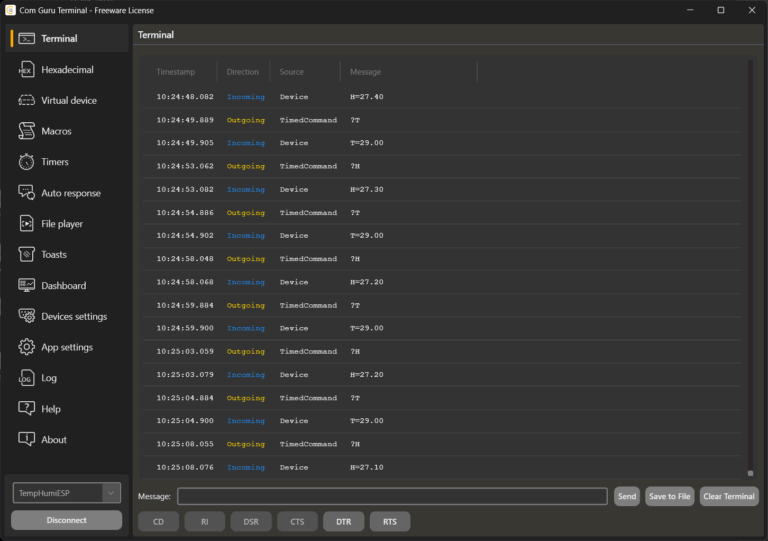

Displaying data from a sensor or system (passive receive)
A typical scenario is a clear display of values that the device sends to the serial line on its own (without being queried). Guru Terminal is connected via a serial port and continuously receives messages.
Configuration procedure:
- Device settings
Set the serial communication parameters (port, speed, parity, data bits, stop bits, etc.). - Dashboard
Configure a regular expression that selects the desired value from the received message and assign it to the corresponding element on the dashboard.
Example of a regular expression for decoding temperature:
temp=(-?[0-9.]+)
Displaying data with active polling
Devices that send data only upon request require a mechanism for periodically sending queries. The following can be used for this purpose:
- Timers for a smaller number of queries or different periods,
- File Player for a larger number of queries in a fixed order.
Timer
The timer periodically sends a defined message. Suitable for situations where:
- there are few queries (typically 1–3),
- queries have different periods,
- simple and clear configuration is required.
Example of timer configuration for an environmental sensor:
Timer 1
- period: 1 s
- query: temp?

Timer 2
- period: 5 s
- query: humi?

Timer 3
- period: 60 s
- query: nox?

Timer 4
- period: 60 s
- query: voc?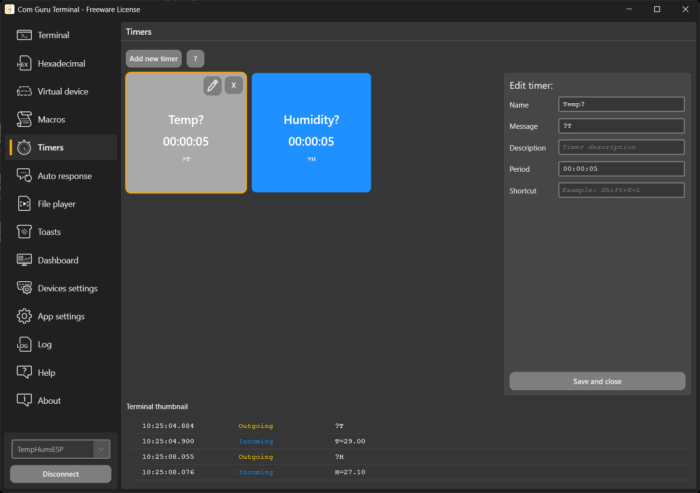
File Player
File Player loads a text file and sends it line by line at a set interval. Suitable for:
- a large number of different requests,
- a fixed sequence of requests,
- easy management of requests outside the application.
Steps:
- Create a text file (e.g., .txt) where each request occupies one line.
- On the File Player tab, upload the file to a new player.
- Set the interval.
- Turn on Auto Restart so that the file plays again from the beginning when it reaches the end.
Example of a file for reading data from an environmental sensor:
temp?
humi?
nox?
voc?
pres?
...
Notifications in Windows (Toast)
Toast notifications can respond to:
- a specific incoming message,
- status detection,
- limit exceeded (if the limit is evaluated from the message content).
Configuration is done in the Toasts tab using regular expressions. If the regular expression matches the incoming data, the selected notification is displayed.
Typical uses:
- limit violations,
- system error states,
- state changes (e.g., completion of an operation).
Toast types: error, warning, info, update, plus, minus.
Recommendation: set a cooldown interval to prevent the system from being overwhelmed with a large number of notifications. Toasts are mainly useful for less frequent events.
Data tracing (Trace)
Currently, basic tracing is available:
- saves received messages without filtering,
- optionally adds metadata (timestamp, RX/TX direction),
- the resulting file may contain:
- information about the port used and communication parameters,
- information about the workstation,
- message statistics.
Ways to create a log:
- automatically: by enabling Auto trace in the App settings tab,
- manually: by clicking in the terminal area and selecting Save to file from the context menu.
Example: simple environmental sensor
The sample device measures temperature and humidity. It does not send values autonomously – it responds only when queried.
Communication parameters
- Baud rate: 9600
- Data ending: CR+LF (Windows)
Commands and responses
- Command:
?H
Response:H=31.50(humidity, float) - Command:
?T
Response:T=20.50(temperature, float)
Configuration goal
- periodically read temperature and humidity,
- display values on the dashboard,
- display a toast notification when the temperature exceeds 30 °C,
- automatically save complete communication (trace).
Settings in COM Guru Terminal
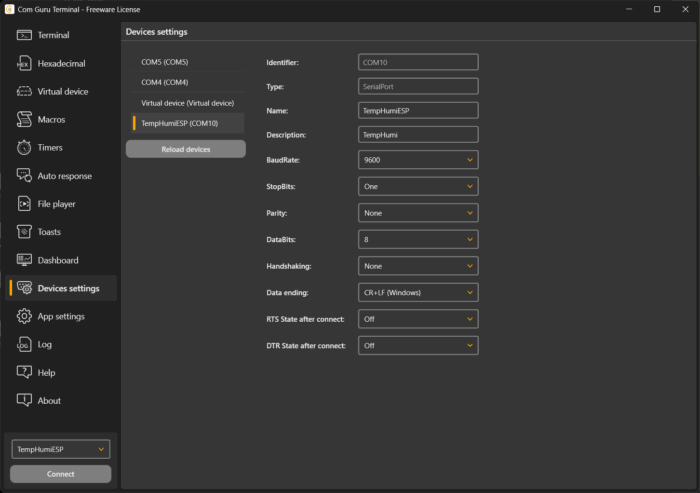
1) Device settings
In the Device settings tab:
- select the COM port (or device if you are using D2XX),
- set:
- BaudRate: 9600
- Data ending: CR+LF
- optionally add:
- Name
- Description
- click Connect.
The device is now ready for manual communication verification.
2) Terminal: communication verification
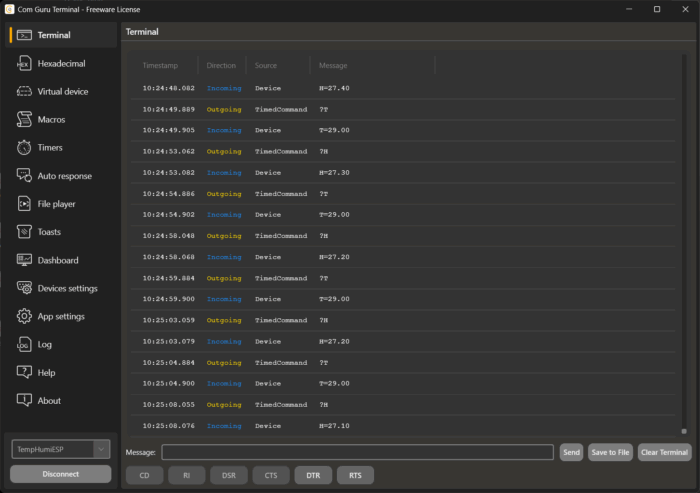
Send basic queries in the Terminal tab:
?T→ expected response format:T=xx.xx?H→ expected response format:H=xx.xx
If the responses match the format, communication is working.
3) Automatic reading using Timers
In the Timers tab, create two timers – one for temperature and one for humidity (separate periods will also be useful later on).
Timer – Temperature
- Name:
Read temperature - Message:
?T - Period:
00:00:05(every 5 s) - Save and close
Timer – Humidity
- Name:
Read humidity - Message:
?H - Period:
00:00:05(every 5 s) - Save and close
After activating the timers, regular TX/RX messages will appear in the terminal.
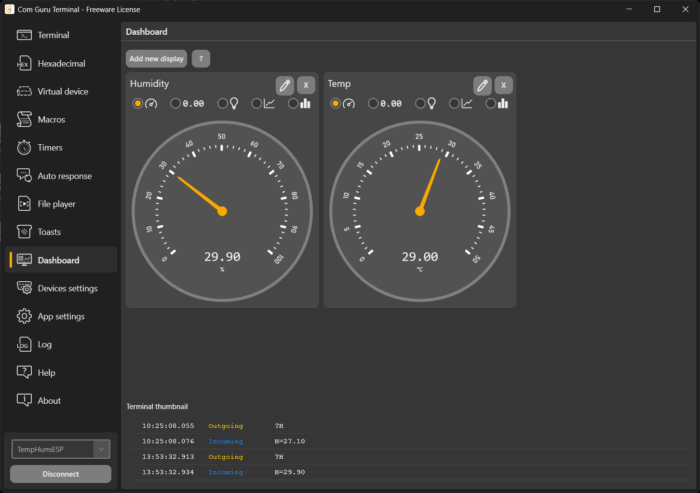
4) Dashboard: displaying values using regex
On the dashboard, values are updated according to the regular expression match on incoming messages.
Temperature – regex
T=(-?[0-9]+(?:\.[0-9]+)?)
Humidity – regex
H=([0-9]+(?:\.[0-9]+)?)
Indicator configuration (same for both):
- Add new display
- Name:
Temperature/Humidity - Regex: see above
- Units:
°C/% - Minimum & Maximum: according to dashboard requirements
- Save and close
Note: the expression is intentionally tolerant (it also accepts whole numbers without decimal places).
5) Toasts: notification when temperature exceeds 30 °C
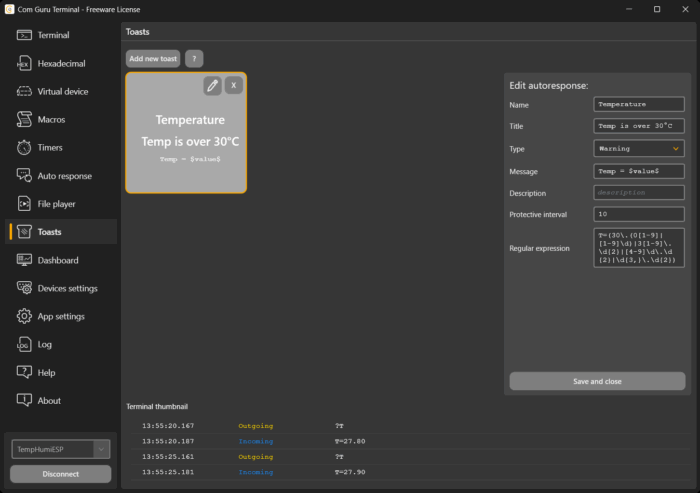
The notification should respond to incoming messages T=… and trigger a toast for values above 30.00. Using pure regex is a compromise: it can be done, but the resulting expression is less readable and more difficult to maintain.
A practical and sustainable approach is therefore:
- Link the Toast to temperature messages.
- Limit the frequency (protective interval).
- Keep the regex simple and readable for the common formats sent by the sensor (two decimal places).
Regex for capturing T=30.01 and above (for the format T=xx.xx):
T=(?:30\.(?:0[1-9]|[1-9][0-9])|3[1-9]\.[0-9]{2}|[4-9][0-9]\.[0-9]{2}|[1-9][0-9]{2,}\.[0-9]{2})
Toast configuration:
- Add new toast
- Name:
High temperature - Title:
Warning - Type:
Warning - Message:
Temp = $value$ °C - Regex: see above
- Protective interval: e.g.
00:00:10
This prevents the toast from being displayed repeatedly with each sample if the temperature remains above the limit.
6) Trace: automatic communication recording
Trace is suitable for later analysis, diagnostics, and communication auditing.
Options:
- manually: in the Terminal tab → Save to file
- automatically: in App settings → trace/saving section:
- format and metadata selection (time, RX/TX),
- target folder,
- file naming,
- automatic saving.
Summary of example
- Timers periodically send
?Tand?H, - Dashboard displays temperature and humidity using regex decoding,
- Toast alerts when
T > 30 °Cand is limited by a protective interval, - Trace saves complete communication for later evaluation.
Summary
The configuration of COM Guru Terminal in “monitoring and operation” mode is based on several repeatable principles: correctly setting line parameters, extracting values from incoming messages using regular expressions, and projecting these values onto the dashboard. Only the method of data acquisition differs depending on the behavior of the device – either the data arrives autonomously, or it needs to be actively requested. Timers (few queries, different periods) or File Player (a larger number of queries in a fixed order) are used for active querying. The operational level is followed by Toast notifications for events that are intended to alert the operator or developer, and Trace for archiving complete communication, including metadata.
An example with a simple environmental sensor shows the entire chain in its minimum configuration. Timers periodically send queries ?T and ?H, incoming responses T=… and H=… are decoded using regexes, and the dashboard continuously displays the current values. The toast notification is linked to temperature reports and is activated when a defined limit is exceeded, with a protective interval limiting the frequency of notifications. Trace simultaneously stores complete RX/TX communication, making it possible to retrospectively verify device behavior, line stability, and the chronological sequence of events.
The result is a usable basis for a simple SCADA center without the need to write integration code: querying, visualization, alerts, and audit logs are handled purely by configuration in the application.
AI for creating regular expressions
When creating regular expressions, it pays to use AI. A typical problem with regexes is that you have to keep in mind the structure of the message, edge cases (minus, decimal part, fixed number of digits), and what should be captured in groups. AI is particularly good at this in three situations: it quickly proposes a first version of the expression based on a few sample lines, it can add variants for edge cases, and it can modify the regex to make it more readable and easier to maintain. The practical procedure is to provide the AI with several real examples of messages (including “bad” or borderline ones), specify exactly what value should be captured, and ask for an explanation of the expression and a set of test inputs. It is always advisable to verify the resulting regex on real data and have a clearly defined expected message format.
Help
Help is also available for quick orientation in the application. Detailed descriptions of functions and settings are available in the Help tab and directly in the UI as context tooltips when you hover your mouse over the names of functions and elements. In practice, this speeds up configuration and checking how specific options behave (especially for timers, toasts, file players, and traces).
Related articles
COM Guru Terminal – new generation of serial terminal
COM Guru Terminal – lightweight penetration and robustness testing
COM Guru Terminal – device or application emulator
COM Guru Terminal – device control and configuration