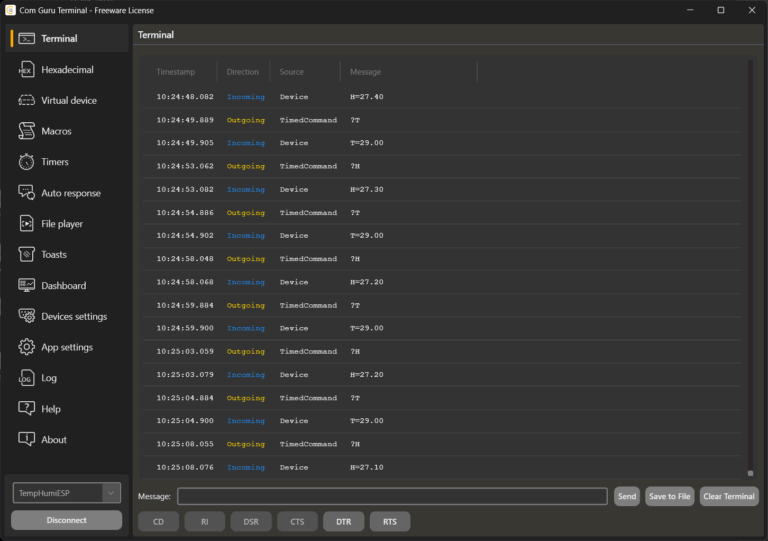

Configuring devices after production, during servicing, or at each start often involves the same pattern of work: open the serial port, send a set of commands, verify the responses, and repeat the procedure on the next unit if necessary. The greatest time losses typically arise from manually typing commands, switching between documentation and the terminal, and errors in sequence or syntax.
The practical goal is to have:
- a deterministic configuration sequence that can be run repeatedly,
- fast control commands without manual typing,
- the ability to easily switch between profiles (service/production/diagnostics).
Two functions are key in this article: File player (batch configuration upload) and Macros (quick control).
Use case 1: Loading initial configuration after manufacturing or startup (File player)
Problems solved
The device requires a set of init/config commands. Manual sending according to the datasheet is slow and error-prone; moreover, it is difficult to repeat between units or between people in the team.
Approach
The configuration is prepared as a text file (ie .txt), where each command is on a separate line. The file player then sends the lines sequentially, typically with an adjustable period. In practice, it is useful to support:
- ignoring empty lines,
- ignoring comments (e.g., lines beginning with
#), - a short period of less than 1 second, if the device can handle it.
Recommended configuration file structure
- blocks separated by a blank line,
- comments for critical steps (why it is being sent),
- if the protocol allows “readback”, include a verification query after configuration (e.g.
GET CFG,STATUS?).
Example (illustrative):
# Device initSET MODE=SERVICESET BAUD=115200# Measurement setupSET RATE=10SET FILTER=ONSAVE
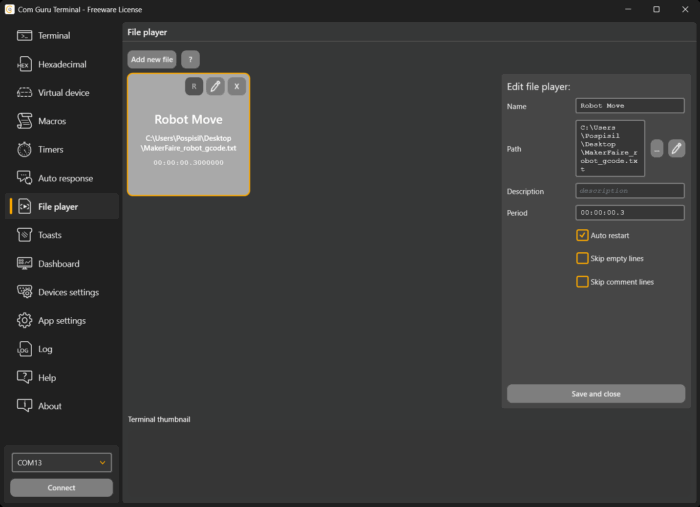
File player setup procedure (according to your design)
- Add new file – create a new block
- Fill in Name
- Use the button with three dots to select the path to the file
- Use the pencil icon to open and edit the file directly
- Optionally add a Description
- Set Period (e.g. even
00:00:00.5, if necessary) - Check which lines should be ignored (empty, comments
#) - Save and close
- Start sending by clicking on the created block
For correct operation, it is essential to have the Device settings set correctly and the port actively connected.
Practical notes from operation
Verification after configuration: if the device can return the configuration, it makes sense to send a query after the batch and check that the status is as expected.
The period is not cosmetic: sending too quickly increases the risk of buffer overflow or loss of responses. For an unknown device, it is reasonable to start conservatively and gradually speed up.
Configuration idempotence: if possible, use commands that can be run repeatedly without side effects (production/service procedures are often interrupted).
Use case 2: Quick control of devices in the laboratory and service (Macros)
Problems solved
During debugging and operation, the same commands are repeated: start/stop measurement, switch modes, reset, read status, turn outputs on/off. Manual typing slows down the process and increases the error rate.
Approach
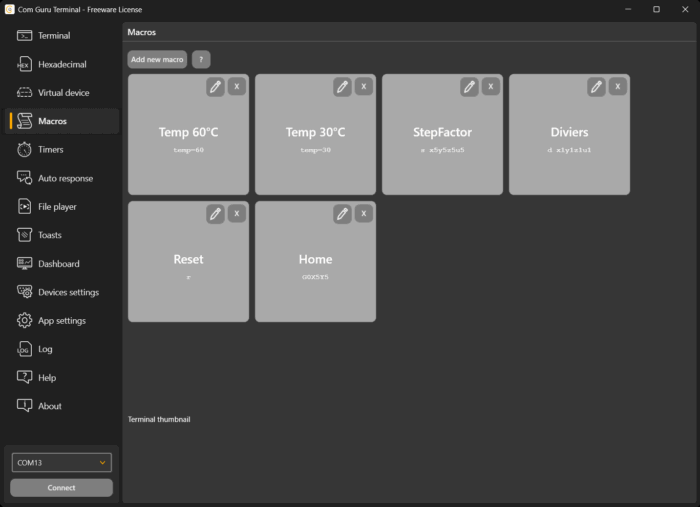
Macros function as pre-prepared commands that are triggered by:
- clicking on a tile in the Macros tab,
- or using a keyboard shortcut assigned to the macro.
A macro typically contains:
- a name (for orientation and possible hotkeys),
- the text of the command being sent (possibly multiple lines, if supported by the terminal),
- a key or combination of keys.
Where macros are most effective
- Operator control: several of the most common commands (Start/Stop/Reset/Status/Mode).
- Service interventions: “diag dump,” “factory reset,” “calibration step.”
- Safety shortcuts: quick output shutdown or immediate process stop.
Physical control outside the PC keyboard
The idea of a wireless numeric keypad is practical because it separates the “control panel” from the PC workstation. In practice, this allows you to:
- control the device on the table while monitoring the response on the screen,
- minimize window switching and manual typing,
- give the operator a clear, described “button” workflow.
It makes sense to keep the number of macros low and cover only the most common operations so that the controls remain unambiguous.
Use case 3: Combination – “load configuration and then control device
A typical operating mode looks like this:
- The file player loads the init/config sequence.
- Macros control normal operation (Start/Stop/Status) or quick mode switching.
- When changing modes (e.g., a different test), a different configuration file is launched and the same set of control macros remains.
This creates a practical division:
- file = “what needs to be set,”
- macros = “what needs to be done now.”
Summary
COM Guru Terminal can be used as a practical tool for controlling and configuring devices via a serial line in production, service, and laboratory tuning scenarios. The file player allows you to prepare a configuration sequence as a text file and then send it repeatedly and deterministically line by line, including support for comments and blank lines. Macros cover frequently used commands (start/stop, reset, status, mode switching) and speed up operation thanks to one-click or keyboard shortcut execution. The combination of both approaches separates “device settings” from “operator control” and reduces the error rate in repetitive tasks.
Related articles
COM Guru Terminal – new generation of serial terminal
COM Guru Terminal – simple SCADA center
COM Guru Terminal – lightweight penetration and robustness testing
COM Guru Terminal – device or application emulator